
Platform · Power Mode
Power Mode: the command center for your work
Power Mode is a dark command-center look for the whole PVology app. It shows the same data, permissions and workflows as the Original look; you switch between them from your profile menu at any time, and organizations can choose a default.
Power Mode capabilities
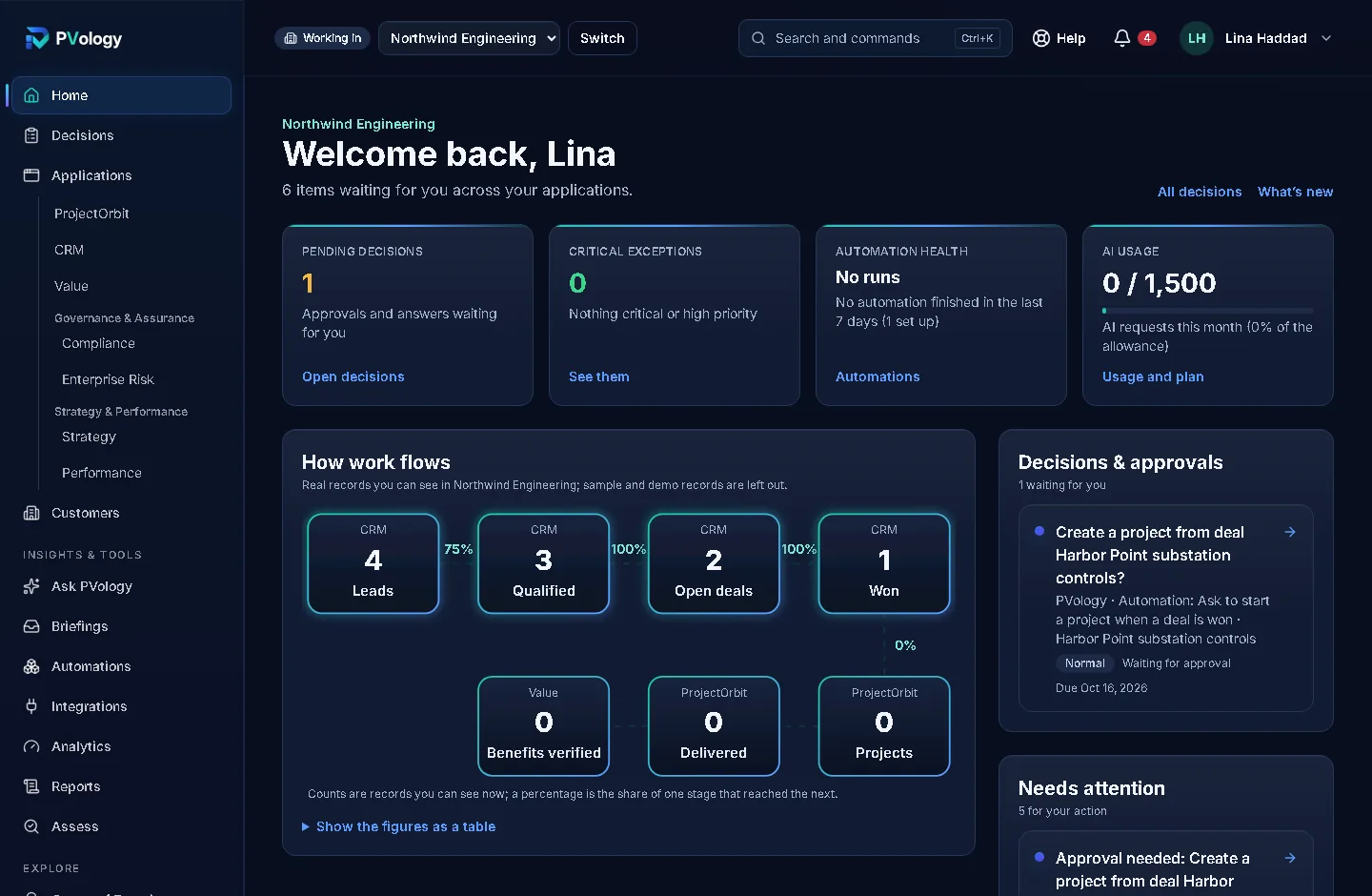
Executive Command Center
Start the day from one screen of real figures: decisions waiting, critical items, automation health and AI use.
- Key figures from your real records, and applications not in your plan say so instead of showing zero
- How work flows: leads to deals to projects to delivered work and verified benefits
- The Decision & Action Center lists everything waiting for your decision, with the reason and a direct link
- Search and commands (Ctrl+K) to go anywhere quickly
Where: Home, in Power Mode
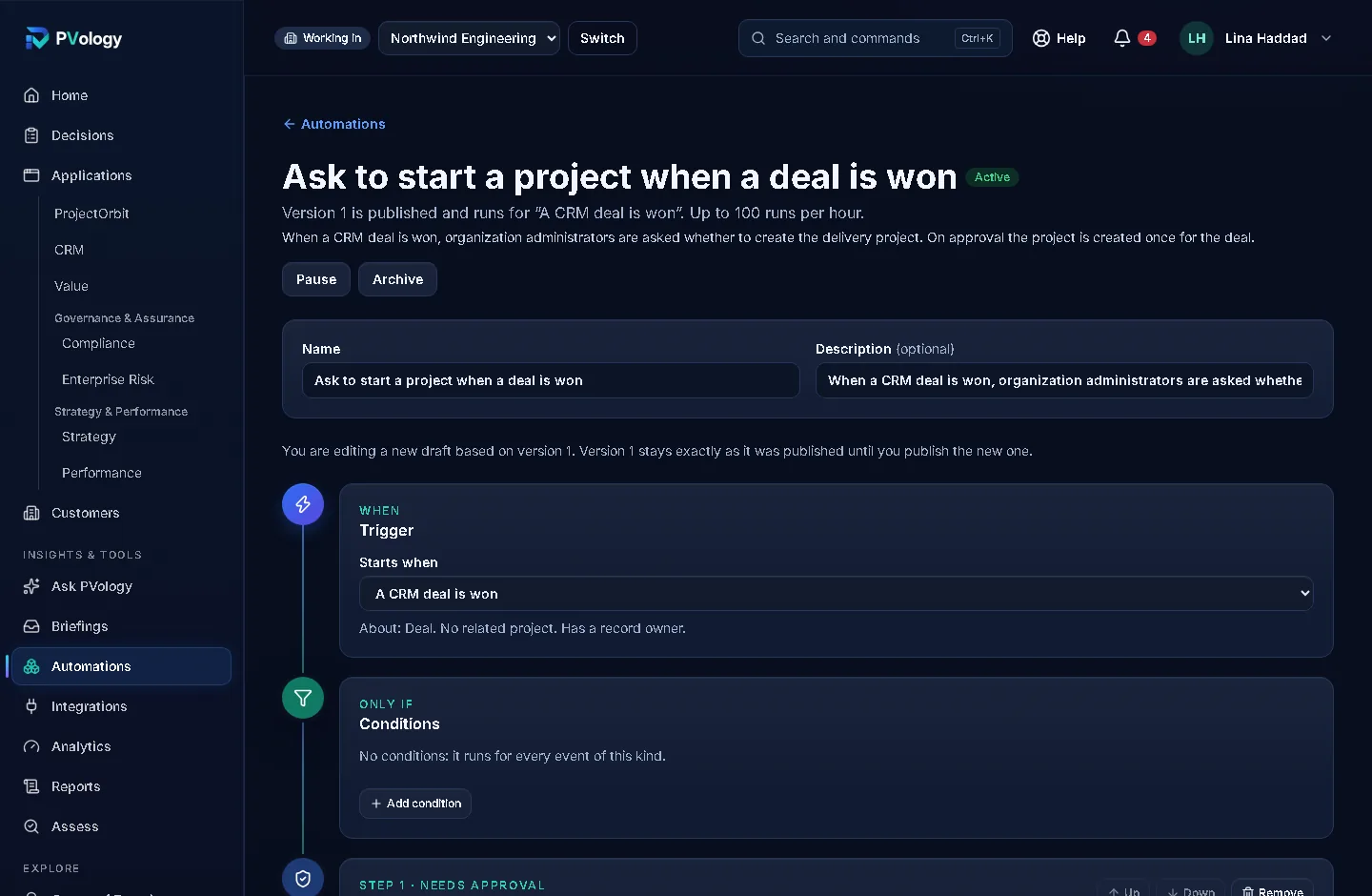
Automation Studio
Turn "when this happens, do that" into a tested, approved routine instead of a reminder someone forgets.
- Triggers such as a deal won, a milestone overdue, a value proposal approved or a payment verified
- Guided steps: trigger, conditions, actions and an optional approval that appears in Decisions
- Test mode that changes nothing, versions, run history and automatic retries
- Start from eight templates or from blank; automations never trigger each other in loops
Where: Menu → Insights & tools → Automations
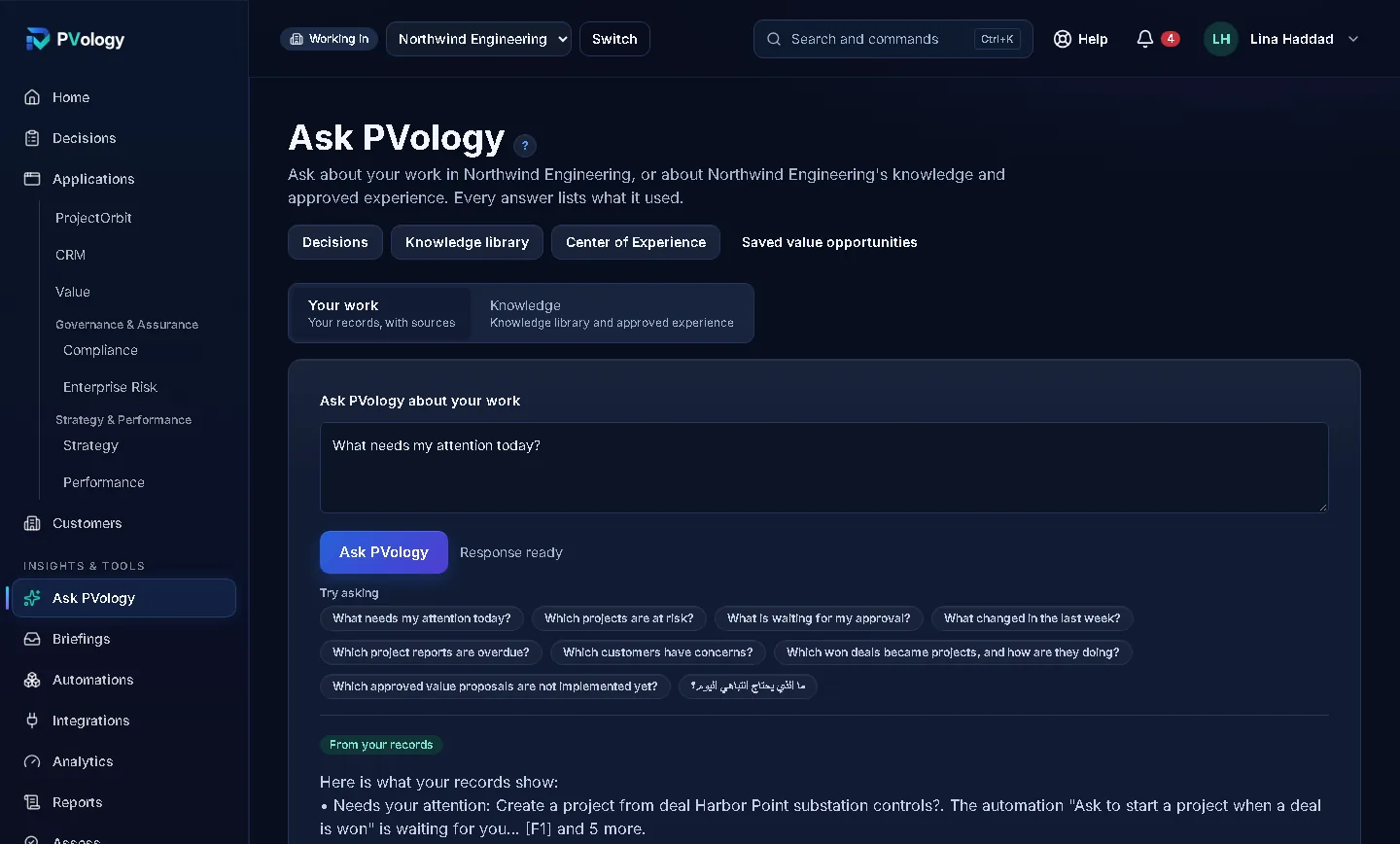
Ask PVology
Ask about your work in plain words and get an answer from records you are allowed to open, with sources.
- Your work: answers from your own records, with numbered sources and facts kept apart from expectations
- Knowledge: your organization's knowledge library and approved experience
- Briefings for your role, such as the Morning Work Brief and the Sales Pipeline Brief
- Never invents data and never acts for you; it answers from your records alone when PVology AI is not switched on
Where: Menu → Insights & tools → Ask PVology
How PVology handles your information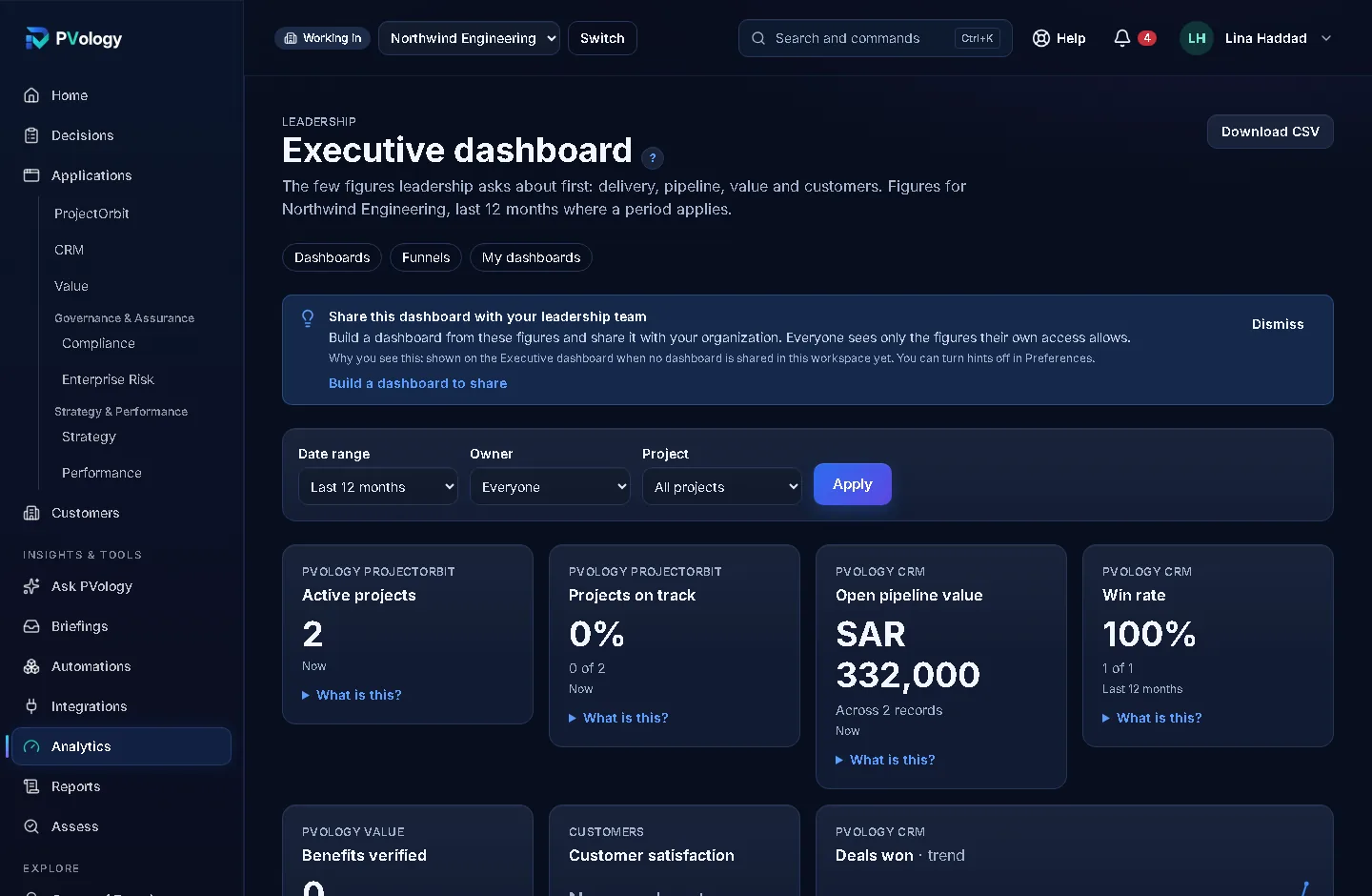
Analytics Studio
One definition for every figure, so leadership, PMO and sales read the same number the same way.
- A catalog of 28 defined measures, each with what it means, how it is calculated and how fresh it is
- Role dashboards for Executive, PMO, Commercial, Value & Benefits, Customer Success and Academy
- Trends that flag unusual periods, and funnels from lead to verified benefit
- Custom dashboards to save, share read-only and download as CSV, following your export policy
Where: Menu → Insights & tools → Analytics
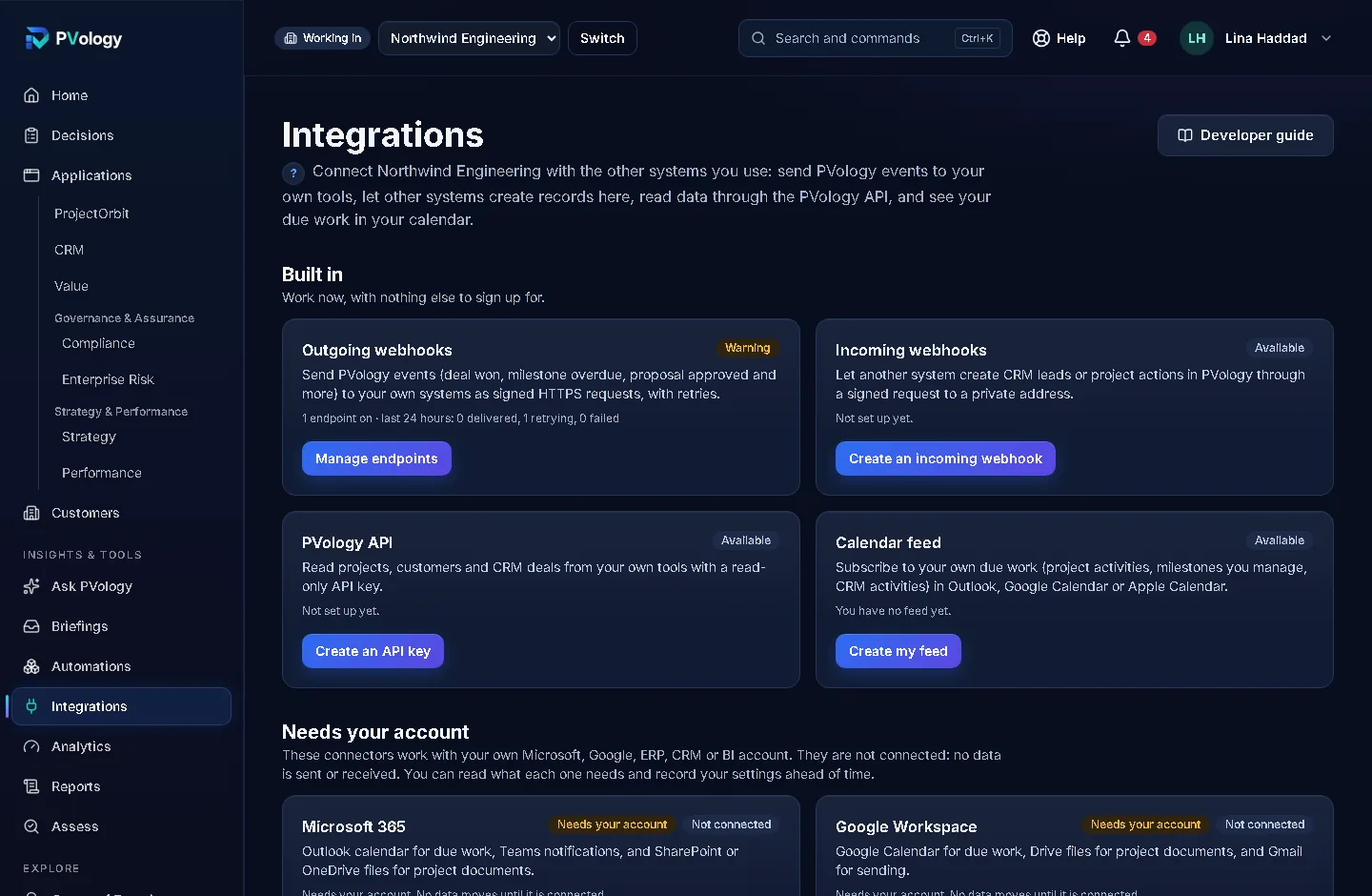
Connect
Connect PVology to your own systems: tested connections, imports with a dry run, sync, signed webhooks and the PVology API, available now.
- Outgoing webhooks: signed notices to your systems, with delivery history and retries
- Incoming webhooks: let a form or another system create CRM leads or project actions
- The PVology API with API clients, scopes, rate limits and an OpenAPI description
- Vendor connectors such as Microsoft 365 or Google Workspace are planned and need your own account
Where: Menu → Insights & tools → Connect
See PVology Connect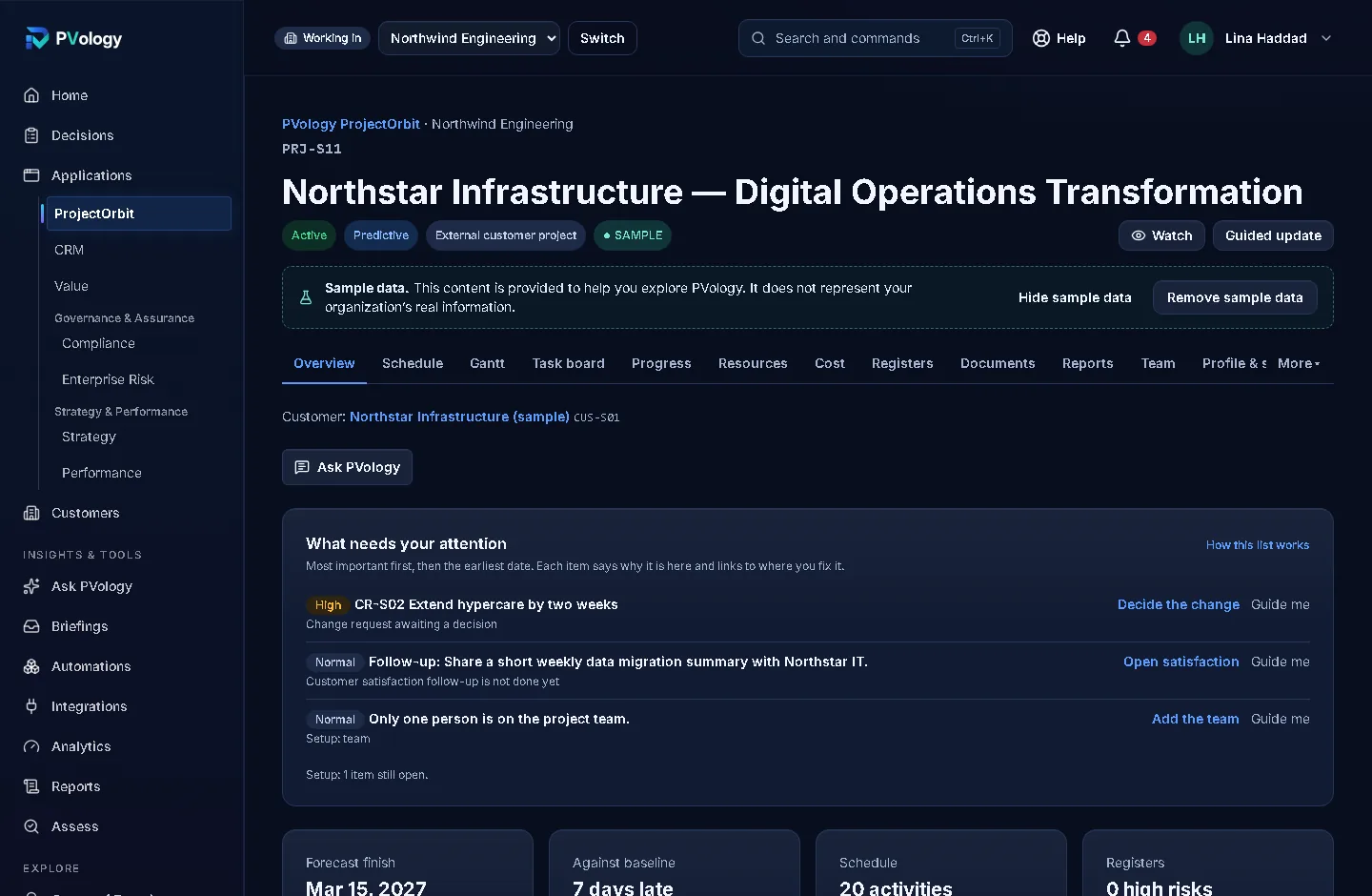
ProjectOrbit
See what needs attention on each project, with the reason and a direct link to fix it.
- Schedules with critical path and baselines, a task board and My Work
- Risks, issues, changes, cost and earned value in one project
- Report Center and a secure customer portal
- Ask PVology on every project
Where: Menu → Applications → ProjectOrbit
Explore PVology ProjectOrbitOn any screen
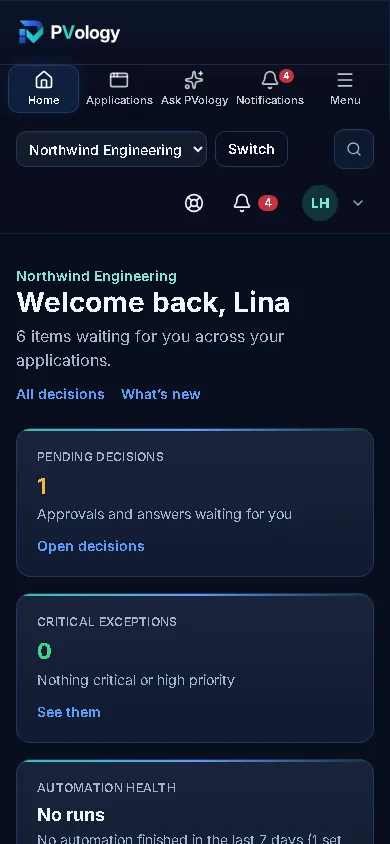
The same command center on your phone
Power Mode works on phones and tablets too: a quick bar for Home, Applications, Ask PVology and Notifications, and the full menu one tap away.
- Same data, permissions and workflows in Original and Power
- Preview Power Mode before choosing it; switch back at any time
- Organization owners can set the default look for members who have not chosen
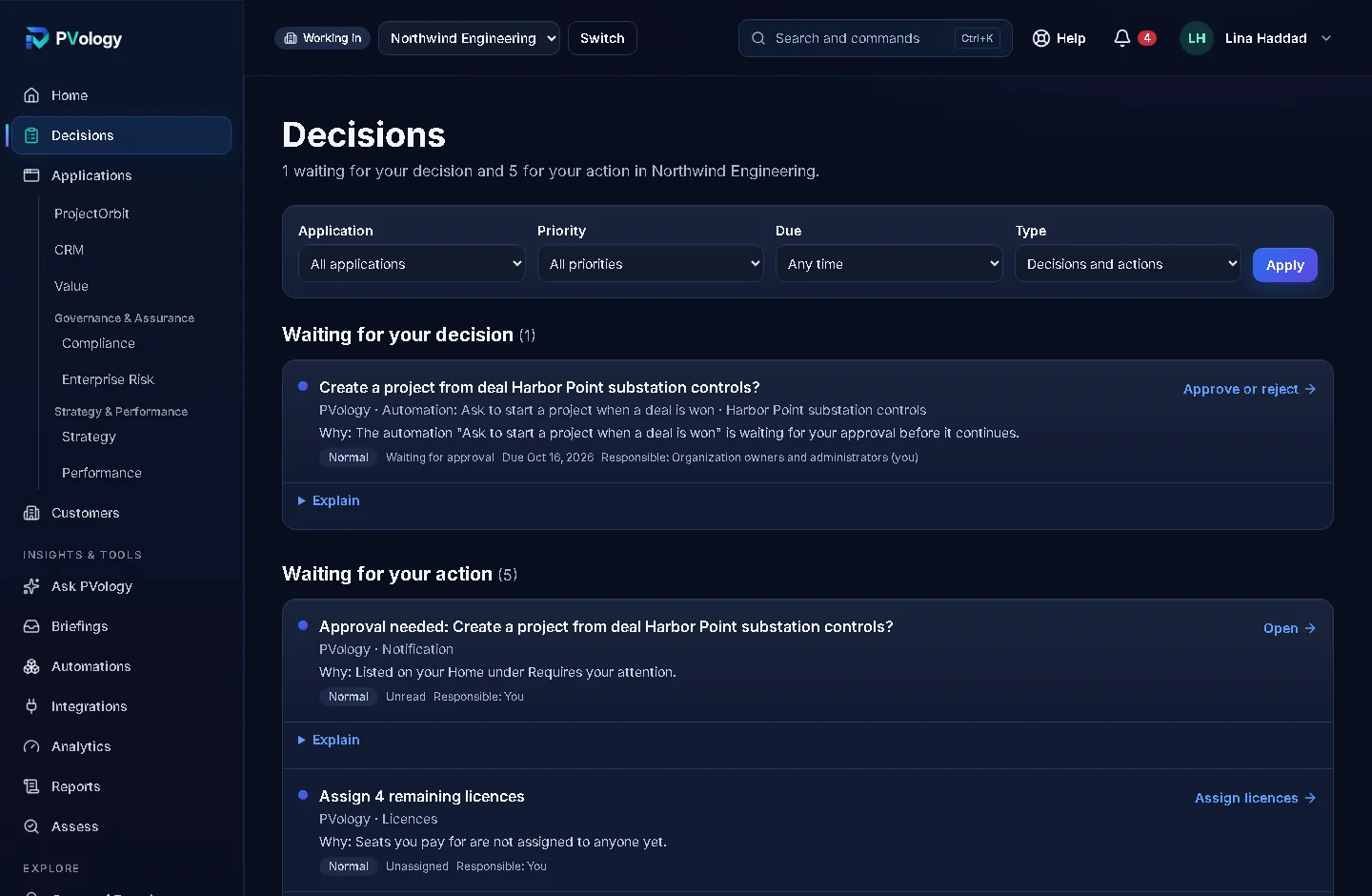
Decision & Action Center
Everything waiting for you, in one list
Approvals and actions from every application you use, with the reason, priority, due date and a direct link. Nothing is copied: each item opens the real record. Explain on every item says what happened, why it matters and who can decide.
How it fits together
One ecosystem, six everyday stories
Each step is a real link between PVology applications and services today.
Sell → Deliver → Measure → Improve
From the first conversation to the benefit the customer actually received.
- 01 · SellDealflowLeads and deals with clear next steps; a won deal becomes a project for the same customer.Open Dealflow
- 02 · DeliverProjectOrbitPlan, run and report the project, with the customer portal for the customer's view.Open ProjectOrbit
- 03 · MeasureValueLensRecord the benefits you planned and verify the ones you realized.Open ValueLens
- 04 · ImproveAnalytics StudioFollow lead to deal to project to verified benefit in one funnel and see where work slows down.Open Analytics Studio
Identify → Act → Verify
From a compliance gap to a closed, reported remediation.
- 01 · IdentifyComplianceRecord the obligation, its owner and due date, and see what is not compliant.Open Compliance
- 02 · ActProjectOrbitCreate a remediation project from the obligation and run it with owners and dates.Open ProjectOrbit
- 03 · VerifyEvidenceKeep the evidence with its owner, validity and review, and close a finding only after someone else verifies the remediation.Open Evidence
- 04 · ReportReportingGenerate the compliance report and follow gap to remediation to closure in Analytics.Open Reporting
Direct → Deliver → Govern → Realize
From strategic direction to the outcome it was meant to achieve.
- 01 · DirectStrategyPulseSet objectives and measures with versioned targets; a measure with no actual says No data, never on track.Open StrategyPulse
- 02 · DeliverProjectOrbitA strategic initiative creates or links its project, and the project shows the objective it serves.Open ProjectOrbit
- 03 · GovernGovernance & AssuranceRisks that threaten an objective are linked to it, with any appetite exception shown on the objective.Open Governance & Assurance
- 04 · RealizeValueLensA value study shows the benefit; the outcome owner decides from the evidence whether it was realized.Open ValueLens
Identify → Analyze → Improve → Sustain
From a signal that something is wrong to an improvement that lasts.
- 01 · IdentifyStrategyPulseAn off-track KPI or an unrealized outcome starts an improvement opportunity; findings, project lessons and customer patterns can too.Open StrategyPulse
- 02 · AnalyzeOpsCatalystMap the process, find the causes with evidence and compare countermeasures; human error is never the final cause.Open OpsCatalyst
- 03 · ImproveProjectOrbitSmall changes run as shared actions and pilots; a large change runs as one ProjectOrbit project created from the case.Open ProjectOrbit
- 04 · SustainGovernance & AssuranceA CAPA proven effective tells the finding's owner, who verifies and closes the finding; the improvement is checked again months later.Open Governance & Assurance
Connect → Feed → Review → Publish
From the systems you already use to trusted records in PVology, and back out.
- 01 · ConnectPVology ConnectConnect your own system with a tested, encrypted credential, map its fields and preview a dry run before anything changes.Open PVology Connect
- 02 · FeedStrategyPulseKPI actuals arrive per period; a failed feed shows as a failure, never as 0.Open StrategyPulse
- 03 · ReviewGovernance & AssuranceEvidence from other systems arrives as candidates; a person reviews it before it counts.Open Governance & Assurance
- 04 · PublishWebhooks and APISigned, versioned events and the PVology API keep your other systems up to date.Open Webhooks and API
Learn → Apply → Improve
From learning how to work well to doing it every day, and seeing the result.
- 01 · LearnPVology AcademyCourses and guided practice with fictional data in a learner sandbox.Open PVology Academy
- 02 · ApplyApplicationsUse what you learned in ProjectOrbit, Dealflow, ValueLens and the other applications.Open Applications
- 03 · AutomateAutomationsMake the routine steps automatic, with tests and approvals.Open Automations
- 04 · ImproveAnalyticsCheck the effect on the measures that matter, defined the same way for everyone.Open Analytics
Security, policies and sharing
Powerful, and still under your control
- Ask PVology, automations, analytics and integrations only use records each person is allowed to open
- Organization policies decide client links, portal invitations, who may export, whether automations may run and which integrations are allowed
- Security events record sign-ins, role changes, policy changes, API keys and exports, with alerts for unusual activity
- Every export is checked against your policy and recorded
See it with your own work
Create an account, try Power Mode from your profile menu, and switch back whenever you like.