
Session 1 · about 12 minutes · PVology concept or tool
Create and set up a project
By the end of this session you can
- Choose between Quick create and New project (guided) for a new project
- Add a WBS element, an activity with an owner and a logic link on the Schedule tab
- Explain how a draft baseline becomes an approved baseline
Case study: You return to Brightwater Interiors, the fictional company moving its 60-person office to a new floor. Reopen your PRACTICE Brightwater office relocation project in your learner sandbox, or create a fresh one from the Standard project lifecycle template, and rehearse the workflows you use most: setting a project up and running it through to a report.
Two ways to start
- Quick create: name, customer, project manager, template and dates; organization defaults are applied and you join the team as project manager
- New project (guided): seven steps from Approach and context to Review, with Save draft and Resume draft
- Creating a project never approves a baseline or sends anything to anyone
- Every answer can be changed later in Profile & settings or with Guided update
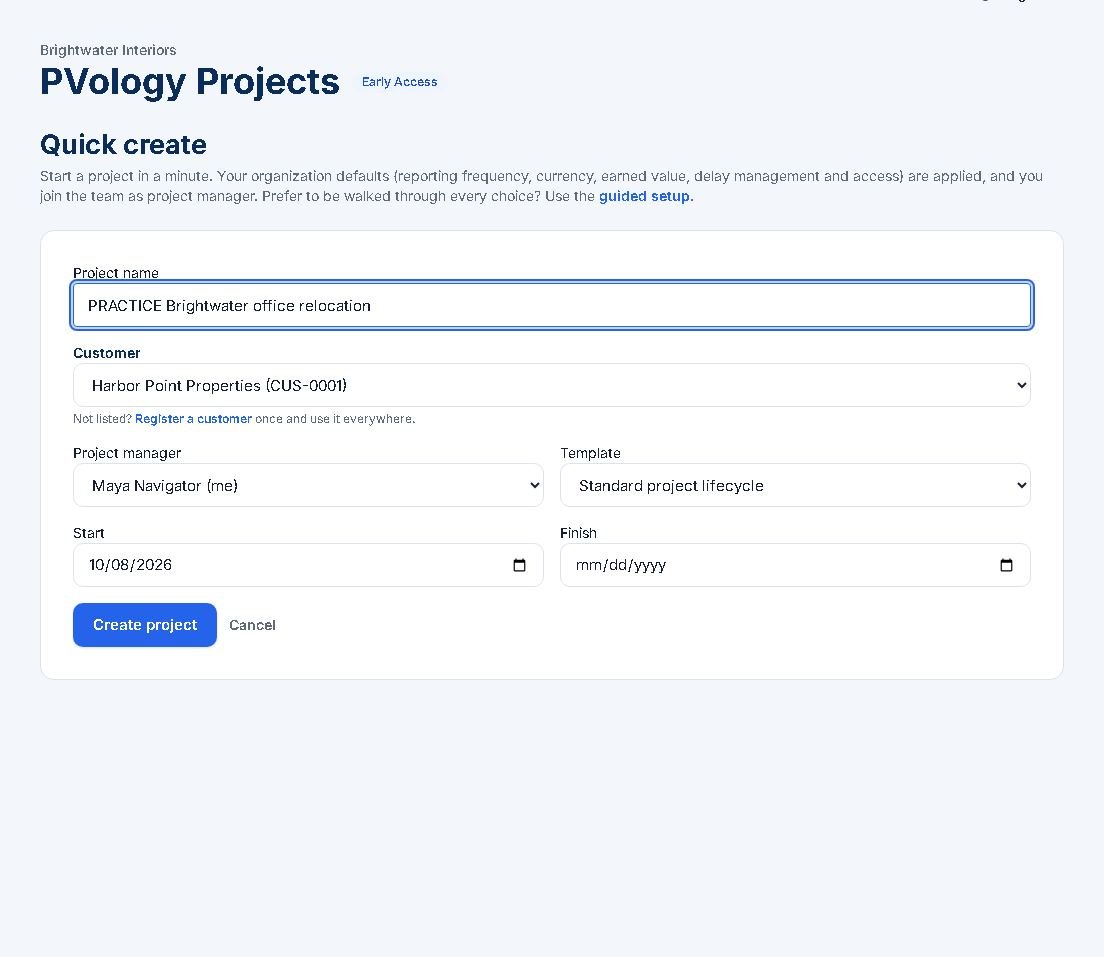
Quick create: a calculated schedule in about a minute when you pick a template.
- Callout 1: Project name is the only required field.
- Callout 2: Template: here Standard project lifecycle, which builds a calculated schedule.
- Callout 3: Create project takes you to the overview with the next steps.
Step by step: Set up the schedule essentials
- Open the Schedule tab and use Add a WBS element (Code, Name, Parent), then Add WBS element.
- Use Add an activity or milestone: give an ID, Name, Type, Duration (working days), WBS and Owner, then Add to schedule.
- Use Add a logic link with Predecessor ID, Successor ID, link type FS and Lag, then Add link.
- Check the Total float column and Critical activities (in logic order).
- Open More → Baselines, choose Capture draft baseline, then approve it with a Reason for approval.
Try it in your sandbox: Rehearse the setup
- In your learner sandbox, open PRACTICE Brightwater office relocation or create it with Quick create from the Standard project lifecycle template.
- Add a practice activity A240 Confirm furniture supplier under 2 Planning, with you as Owner and a FS link from A220.
- Capture a draft baseline named PRACTICE baseline refresh and approve it. In your personal workspace you are the approver.
- Use only fictional practice data and never change a live project.
Practice data only: use your learner sandbox and fictional records starting with PRACTICE. Never use live projects or real customer data.
What to remember about setup
Quick create is the fast route when you know the essentials. New project (guided) is better when the approach is still open: it asks how the project will be managed, the customer context, dates, people, cost and how to start, and it keeps a server draft so you can stop and resume.
A schedule only works with logic. Each activity should have a predecessor and a successor, so ProjectOrbit can calculate float and the critical path. A baseline starts as a draft. Only an approver, the organization owner or an admin, can approve it, and once approved it never changes.
Activity: Set up and baseline
In your sandbox practice project add one activity with an owner and a logic link, then capture and approve a baseline. Note the baseline version and what the Gantt chart now shows.
Tool: ProjectOrbit in your learner sandbox (practice data only)
What a good answer contains
A new activity with an owner and a FS link, an approved baseline (the previous approved one, if any, becomes Superseded) and the Gantt label Baseline: version N.
Knowledge check
Preview: answers are checked in your browser and not saved.
Summary
- Use Quick create when the essentials are known and New project (guided) when the approach is still open.
- Build logic links and set owners as you go.
- A baseline is captured as a draft and approved by an owner or admin with a reason.
References
- PVology ProjectOrbit: projects home, quick create and wizard, WBS, schedule and baselines, task board and My Work, team, registers, cost and earned value, Report Center, customer portal, PMO views, attention list (PVology, Build 14 (0.24 to 0.27)). Verified PVology application, described from the implemented screens.
PVology Academy teaching is original. References inform it; nothing is reproduced, and no other body accredits or endorses PVology courses or credentials.