
Session 1 · about 10 minutes · PVology concept or tool
What ProjectOrbit is and how this course works
By the end of this session you can
- Describe what ProjectOrbit helps a project team do
- Explain how sessions, knowledge checks, the practical exercise and the assessment lead to PCOU
- Open your learner sandbox and recognise practice data
Case study: You meet Brightwater Interiors, a fictional company moving its 60-person office to a new floor in twelve weeks. In this module you open ProjectOrbit, find your way around the Projects home and get your learner sandbox ready for the practice project you will build through the course.
ProjectOrbit in one slide
- One workspace for planning, running, reporting and closing projects
- Shown as PVology ProjectOrbit in the module header and as ProjectOrbit in the menu
- Everything a project needs sits on tabs: Overview, Schedule, Gantt, Task board, Cost, Registers, Reports and more
- Connected to the rest of PVology: customers, CRM deals, Value studies and Compliance can all start a project
How this course works
- 18 short modules, each with screenshots of the real application and a 3 to 5 question knowledge check
- Practice happens in your learner sandbox with fictional data, never in live projects
- Module 17 is a practical exercise a reviewer checks; module 18 is the assessment
- Pass both and, after academy approval, you receive PCOU: PVology Certified ProjectOrbit User, valid for one year
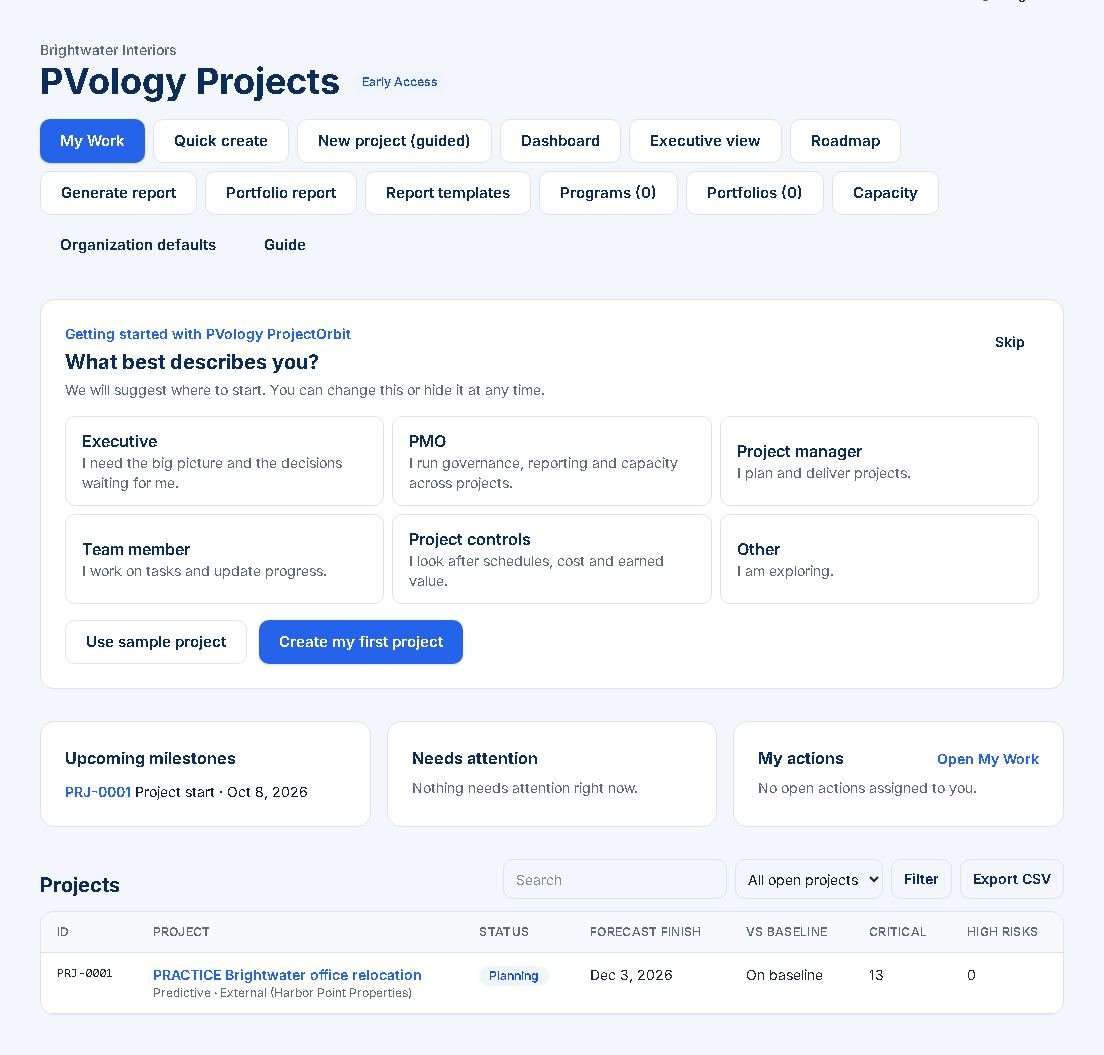
The Projects home: where every session starts.
- Callout 1: Header buttons: My Work, Quick create, New project (guided), Dashboard, Portfolio report and more.
- Callout 2: Three cards: Upcoming milestones, Needs attention and My actions.
- Callout 3: The Projects list with forecast finish, Vs baseline, critical activities and high risks.
Try it in your sandbox: Get your sandbox ready
- Open your course page in PVology Academy and find the card Your learner sandbox.
- Choose Open PVology ProjectOrbit. You are now in your personal workspace with practice access to ProjectOrbit.
- Agree with yourself on one rule: every practice record starts with PRACTICE and uses only fictional data.
- Do not open or change live projects for any exercise in this course.
Practice data only: use your learner sandbox and fictional records starting with PRACTICE. Never use live projects or real customer data.
Why learn the application properly
ProjectOrbit does a lot of the hard work for you: it recalculates the schedule, keeps an attention list of what needs you, freezes report data when a report is prepared and keeps approved baselines unchanged. Those safeguards only help when people use the right screen for the right job.
This course shows the real screens, in the order you meet them on a real project. Each session is short: look at the slides and screenshots first, follow the walkthrough, try it in your sandbox, then answer the knowledge check. You complete a session by scoring at least 75% on its check.
Activity: Find your way to the sandbox
Open your learner sandbox from the course page and note the three cards you see on the Projects home. If you have no projects yet, note what the empty workspace offers instead.
Tool: ProjectOrbit in your learner sandbox (practice data only)
What a good answer contains
The cards are Upcoming milestones, Needs attention and My actions. An empty workspace shows Welcome to PVology ProjectOrbit with Create project and the option to explore sample data.
Knowledge check
Preview: answers are checked in your browser and not saved.
Summary
- ProjectOrbit is PVology's project and delivery workspace, shown as PVology ProjectOrbit in the module header.
- Practise only in your learner sandbox with fictional PRACTICE data.
- PCOU validates application usage for one year; it is not a professional project-management certification.
References
- PVology ProjectOrbit: projects home, quick create and wizard, WBS, schedule and baselines, task board and My Work, team, registers, cost and earned value, Report Center, customer portal, PMO views, attention list (PVology, Build 14 (0.24 to 0.27)). Verified PVology application, described from the implemented screens.
PVology Academy teaching is original. References inform it; nothing is reproduced, and no other body accredits or endorses PVology courses or credentials.